‹
›
×
Set up your station, connect your Mixcloud account, and let MixManager handle the rest.
Need a hand? Email [email protected] or use the chat icon in the bottom-right of any dashboard page.
MixManager is the simplest way to get your radio shows onto Mixcloud automatically. You set up a show once — title, artwork, schedule — and MixManager handles the rest, week after week.
It works two ways:
You can also push one-off uploads manually whenever you like.
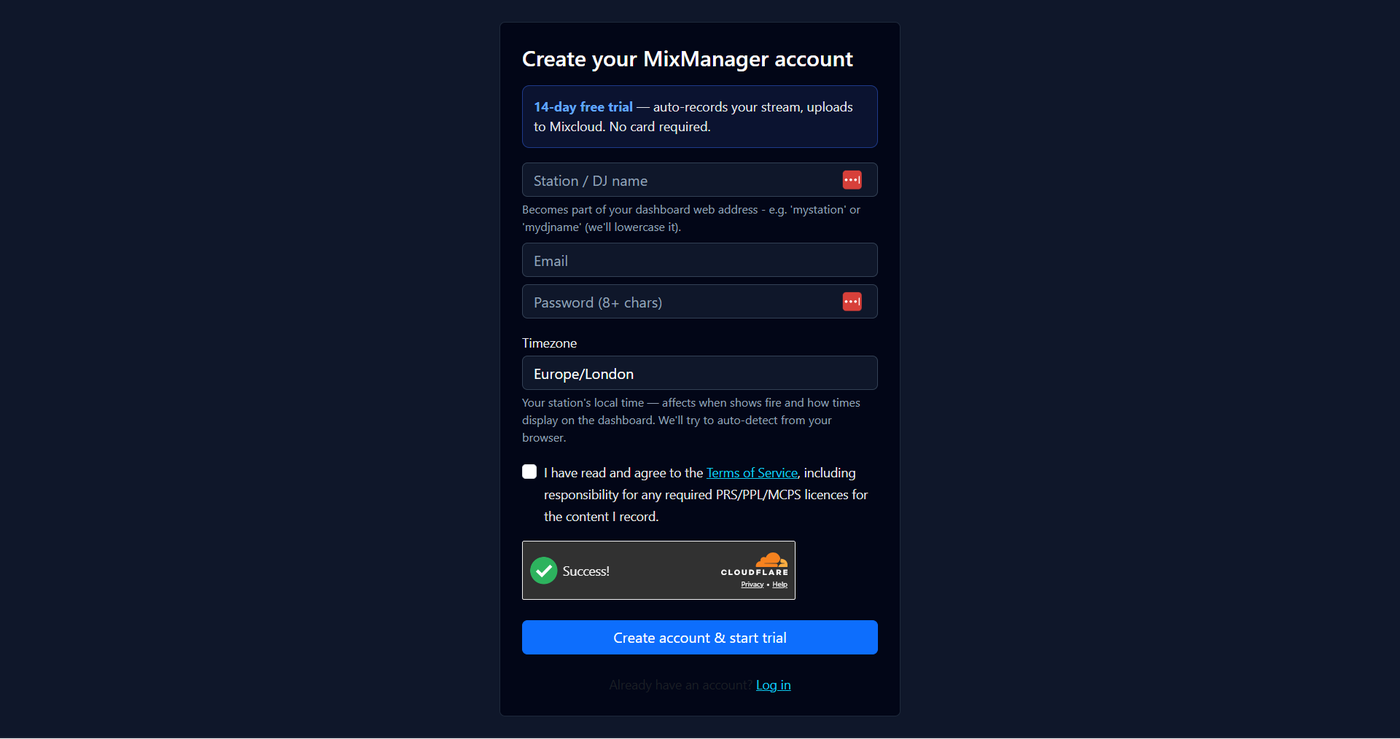
A short, URL-friendly handle for your station — e.g. mystation,
mydjname, myartistname. It identifies your station
inside MixManager so we can tell one account apart from another. It's lowercase,
no spaces; dashes are fine. If you type it with spaces or capitals, MixManager
tidies it for you.
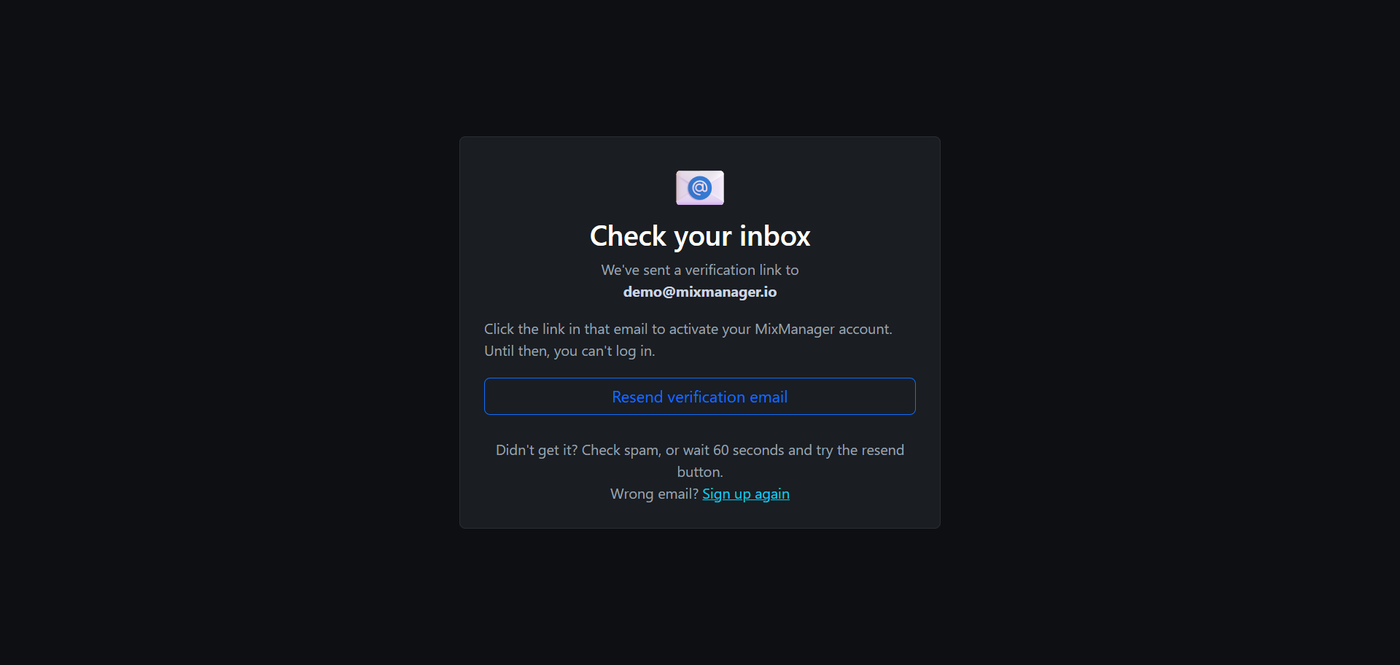
You can't log in until you've clicked the link in the verification email. On the "verify pending" page, you can re-send the email (once every 60 seconds). The link is valid for 7 days.
On the login page, click Forgot password?. Enter your email and we'll send a reset link valid for 1 hour.
Each station is its own MixManager account — own plan, own shows, own Mixcloud connection, own billing. To run a second station, just sign up again from scratch using a different email address for the new one. This keeps each station's login, billing, and Mixcloud connection cleanly separated.
MixManager publishes to your own Mixcloud account, so the first thing to do after logging in is connect it.
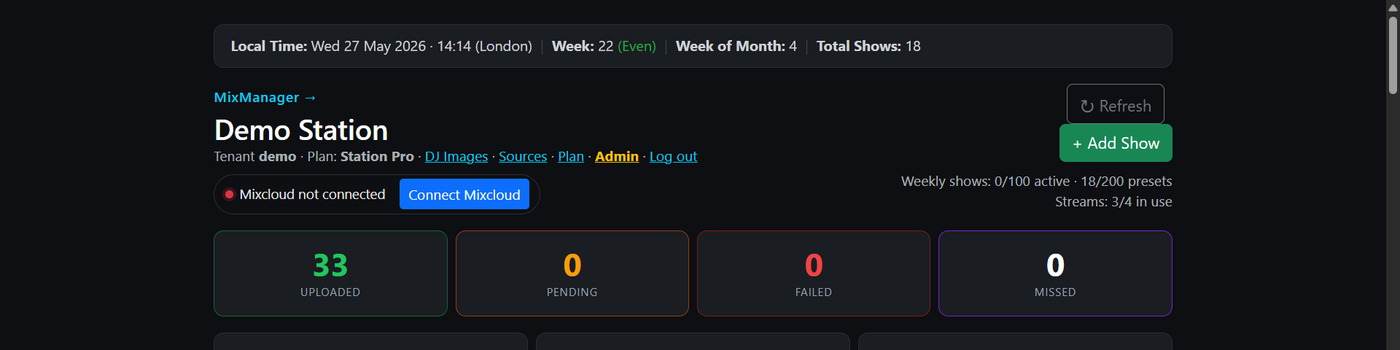
If you connected the wrong account, you can switch without contacting support. On the dashboard, click the Switch account link next to your Mixcloud connection label. This disconnects MixManager and opens mixcloud.com in a new tab. On that tab, click your avatar (top-right) and log out, then log back in to Mixcloud with the correct account. Return to MixManager and click Connect Mixcloud again.
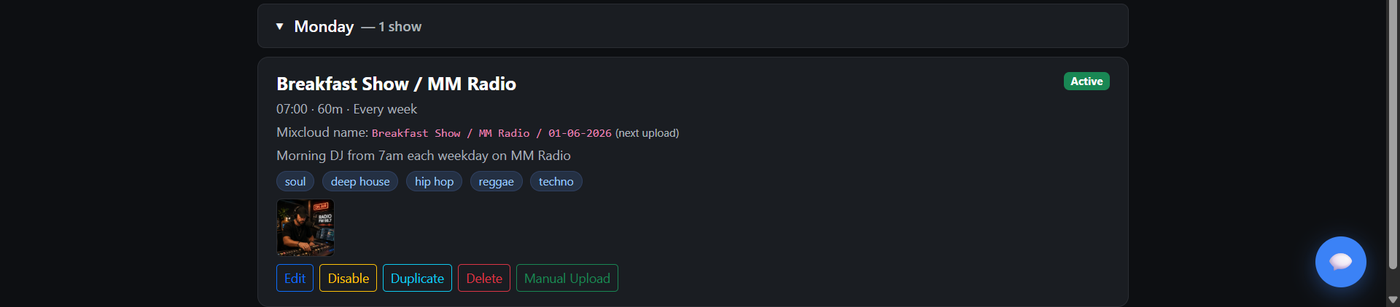
Each show in MixManager is a tile on your dashboard. A tile holds the show title, artwork, description, tags, schedule, and either the live stream URL or the cloud folder it pulls files from.
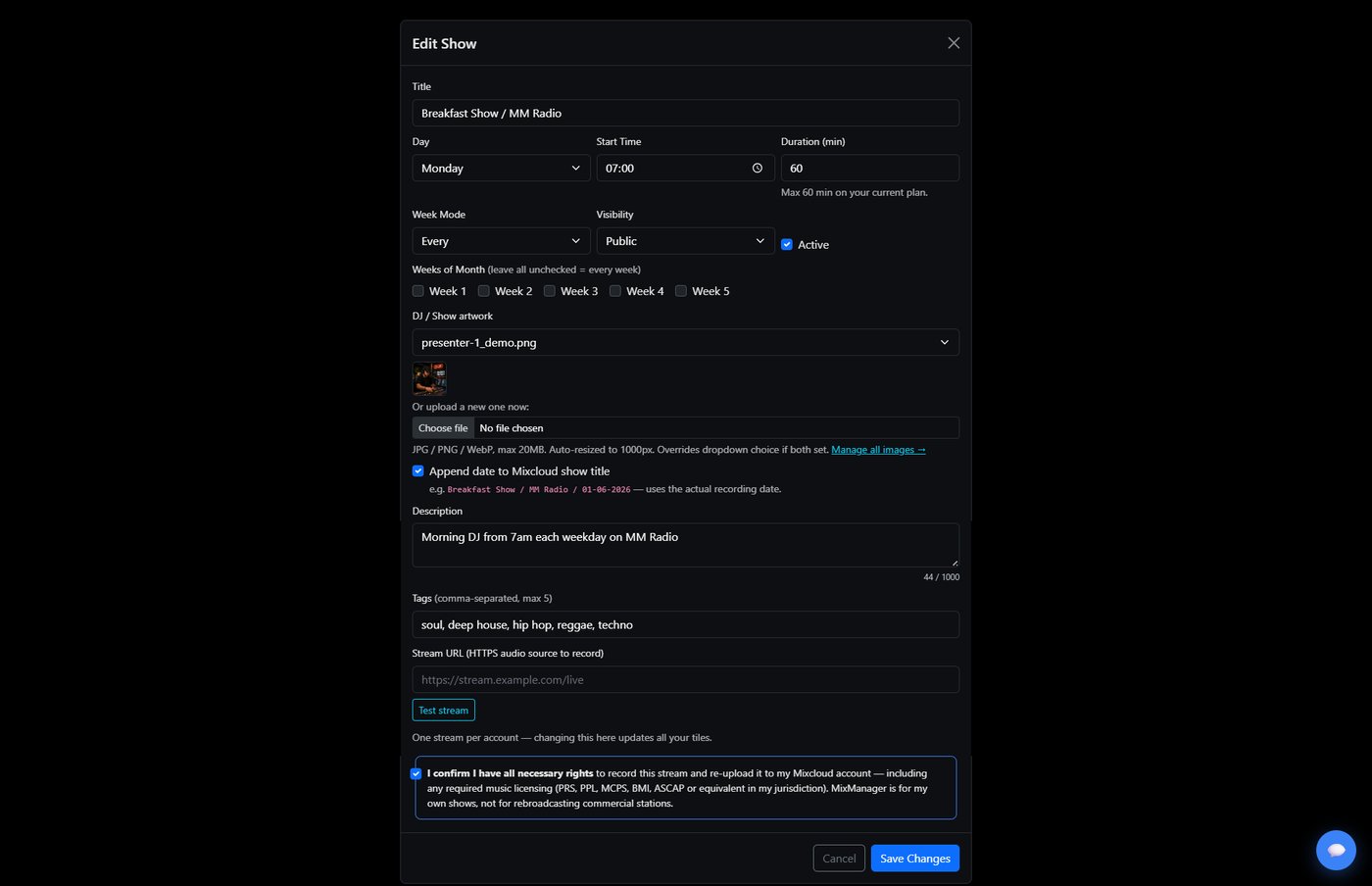
Paste the public stream URL (the same one you'd put in a media player). At the scheduled start time, MixManager records the stream for the duration you set and publishes it to your Mixcloud account.
Use the Test stream button in the editor to play a five-second sample, so you can confirm the URL returns real audio before save.
With the Drop Folder add-on, you can connect a cloud folder as the source instead. Drop your finished show into the folder by the show's scheduled time, and MixManager publishes it to Mixcloud for you.
Three folder source options are supported:
Once a source is connected on the Sources page, you can pick a folder per tile using the Pick folder button in the tile editor. The Test folder button confirms MixManager can see the folder and shows the three most recent audio files inside.
Mixcloud limits descriptions to 1000 characters. The description box shows a live counter underneath so you know how much room you have left. Anything beyond 1000 won't be sent.
You can upload a new image directly in the tile editor, or pick from your DJ Images library — see section 5. Supported formats: JPG, PNG, WebP. Auto-resized for Mixcloud.
Every tile requires you to tick a box confirming you have all necessary rights to the audio (PRS, PPL, MCPS, BMI, ASCAP, or your local equivalent). The wording adapts to the tile mode — recording a stream vs uploading your own files — but the same rules apply. MixManager is not a music licensing service.
Each tile has a schedule built from:
Set Week mode to Once only. The show records at the next matching day and time, then MixManager automatically disables the tile so it can't fire again. The tile stays visible on your dashboard as Disabled — re-enable it for another one-off, or duplicate it to spin up a fresh copy.
If your show starts at 11pm Friday and ends 1am Saturday, MixManager uses the show start date on Mixcloud — so it appears as Friday's show, not Saturday's. This matches how listeners search.
The tile editor shows a "Mixcloud filename example" preview with the date of the next scheduled occurrence — not today. So if today is Tuesday and your tile is set to Mondays 11am, the example shows next Monday's date.
DJ Images is your central artwork library. Upload once, reuse across as many shows as you like. When you replace an image here, every tile that uses it updates instantly.
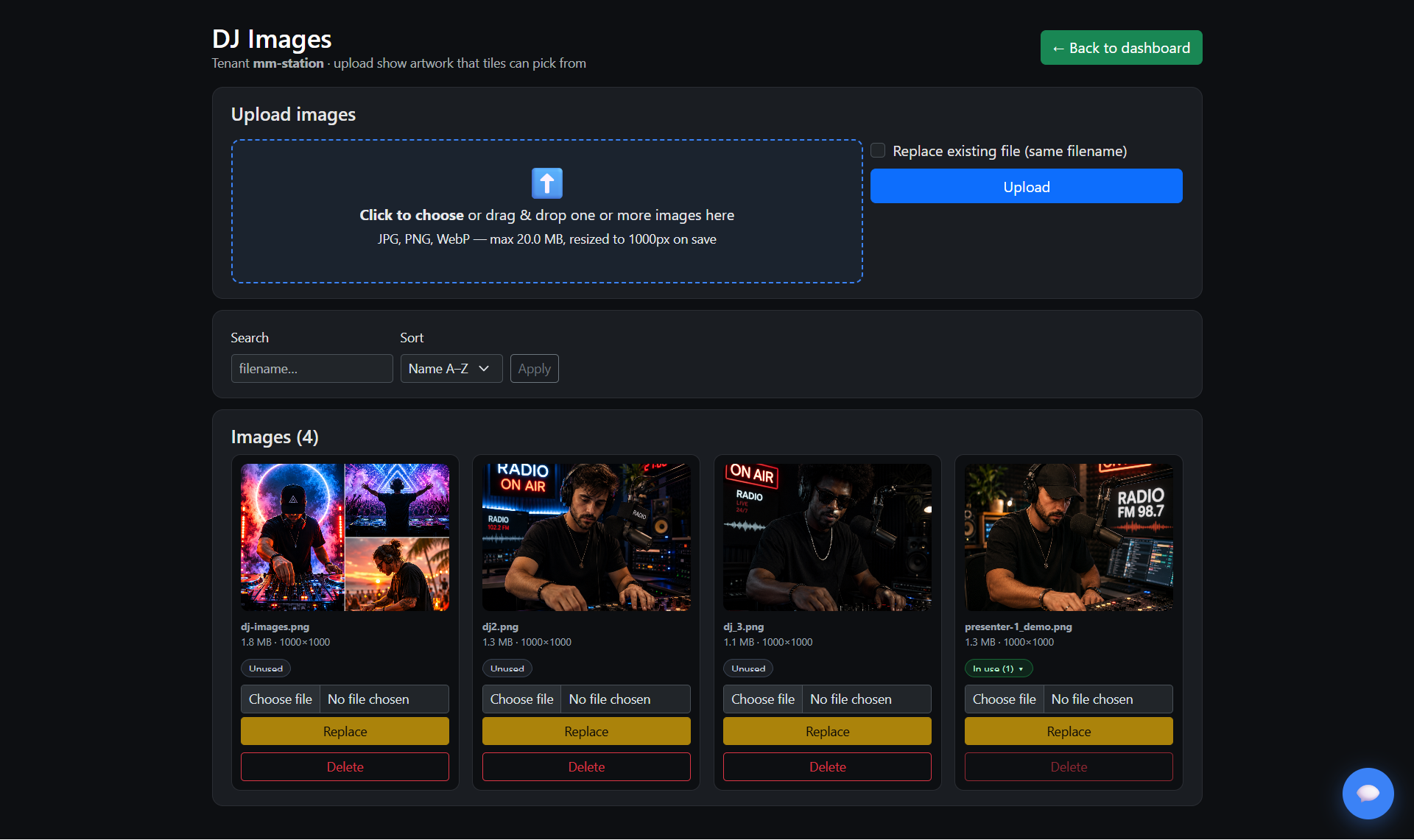
Open it from your dashboard's DJ Images menu.
Each image card shows how many tiles currently use it — handy for spotting cruft. Images that aren't linked to any tile can be deleted; ones in use are protected from accidental deletion.
Use Replace to swap an image without changing the filename — every tile that uses it updates automatically. Use Delete to remove an image you no longer need (only available when no tiles use it).
Most uploads happen automatically. Manual Upload is for the rare times you want to push an audio file from your own computer straight to Mixcloud, using a tile's metadata.
Typical reasons:
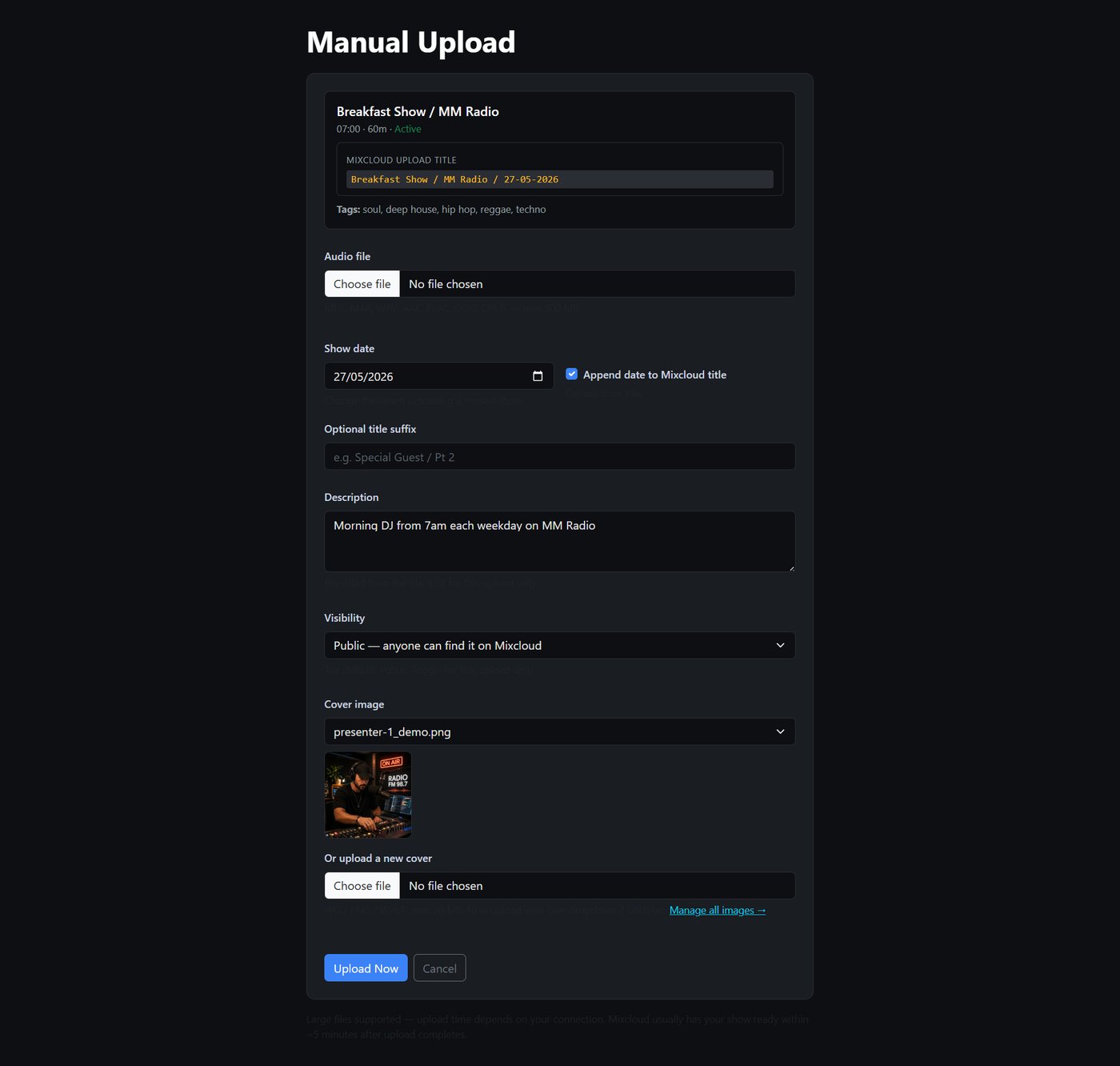
Anything you change in the dialog only affects this one upload — your saved tile defaults stay as they were.
The date defaults to today, but you can pick any past date — useful for catching up on missed shows. The Append date to title checkbox controls whether the final title becomes "Show Name / 26-05-2026" or just "Show Name".
Add an optional suffix after the date — handy for guest names or special editions. A live preview shows you exactly what the Mixcloud title will look like before you upload.
Three options inside the dialog:
Maximum upload size is 500 MB. A progress bar shows how the upload is going.
Manual Upload is available on all paid plans. Free trial accounts see the button but get a friendly upgrade prompt when they click it.
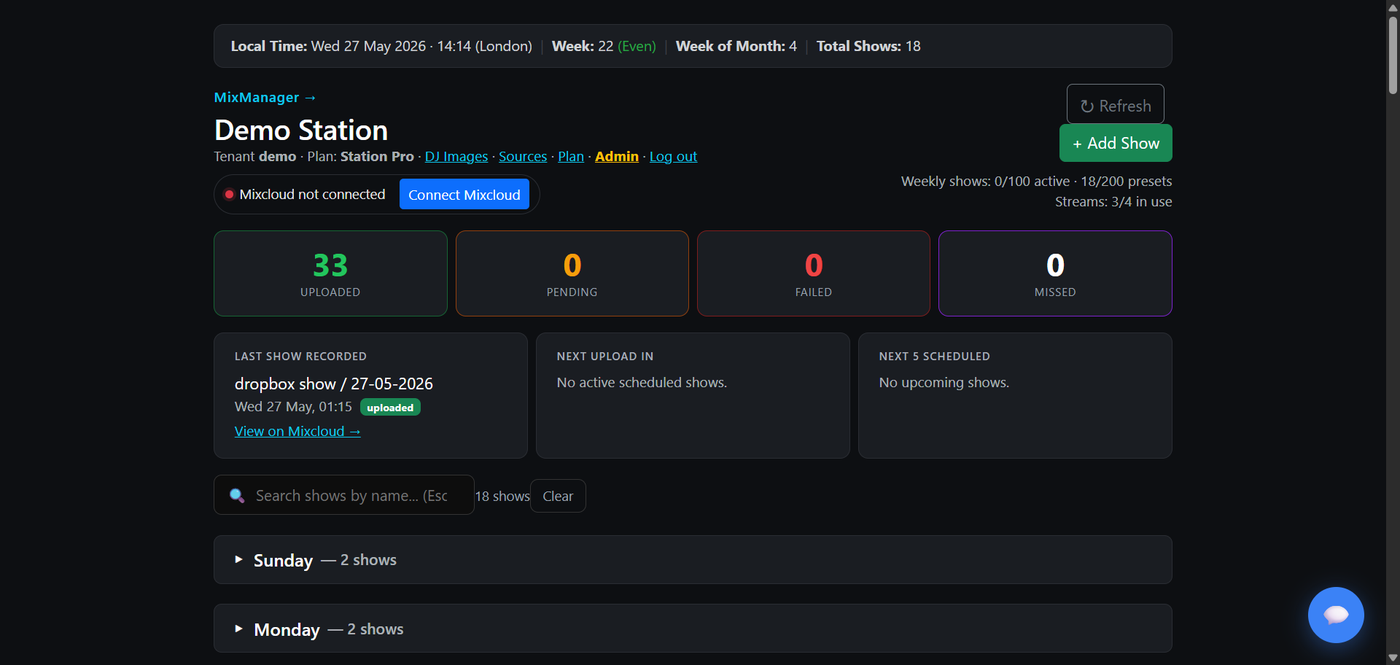
Each show is a tile, grouped by day of the week. Each tile shows:
Shows the next show due to record or upload, with a live countdown. While a show is in progress, it switches to a red "Recording — ~X min remaining" state. When recording finishes, status flows through Pending → Uploading → Uploaded automatically.
The dashboard refreshes itself every few seconds so badge states and countdowns stay accurate without you reloading. If you're editing a tile or chatting with our assistant when an update lands, it politely waits until you're done.
If a recording is going and you need to stop it (wrong stream URL, scheduled at the wrong time, etc.), click the red Cancel Recording button on the tile. Audio captured so far is discarded and the tile becomes editable again. (Tiles are locked from editing while recording — Cancel first, then edit.)
The Uploads page shows every recording with the exact title that went to Mixcloud — including any appended date and suffix — so it matches your Mixcloud profile one-to-one. Filter by status, search by title, pick a date range.
MixManager silently checks each tile's source when you save it. If the check fails, a red Test failed badge appears on the tile card next dashboard refresh — hover to see the full error. Tiles that tested OK show no badge.
Prices are in GBP, billed monthly. See the plans page for the always-current list.
| Plan | Price | Active weekly shows | Saved show presets | Max show length |
|---|---|---|---|---|
| Starter (14-day trial) | Free | 1 | 1 | 240 min |
| Solo DJ | £5 | 1 | 3 | 180 min |
| Pro DJ | £12 | 5 | 7 | 300 min |
| Station Lite | £29 | 15 | 25 | 360 min |
| Station Plus | £49 | 35 | 50 | 360 min |
| Station Pro | £79 | 100 | 200 | 480 min |
Saved show presets are tile configurations you've stored. You can save more than your active limit, and switch between them as needed.
Click any plan card in the Plans section of your dashboard to switch. You'll get a confirmation dialog before anything happens. Bolt-ons and their connected sources are preserved across plan changes. We pro-rate the difference and apply it to your next invoice.
Your tiles, schedules, DJ images and uploaded history are never deleted. If your new plan's active-tile limit is lower than the number you have active, the excess tiles are automatically deactivated (newest first). Deactivated tiles remain visible — flip them back on if you upgrade again later.
Cancel any time from your dashboard via Manage subscription. Cancellation refunds the unused portion of your current period back to your card. Your data stays in our database after cancellation, so re-subscribing later picks up exactly where you left off.
14 days, no card required, full access to the core service. After the trial, dashboard access pauses until you pick a plan.
When you add a bolt-on from your plans page, each tile has an optional "Promo code (optional)" field above the Add bolt-on button.
Note: the confirmation popup will explain that validation happens with Stripe first, so even if you enter a code you’re not sure about, you won’t be charged unless the code is valid (or absent).
Mixcloud's own tiers cap how many shows you can publish. This is separate from any MixManager limit and applies to your Mixcloud account regardless of what you do with MixManager.
This is almost always a temporary outage on Mixcloud's side, not MixManager. Both their OAuth login page and their token-exchange backend can wobble for anywhere from a few minutes to an hour. Symptoms you might see:
www.mixcloud.com/oauth/authorize showing "500" or "Sorry, something went wrong"token_exchange_failed_http_403What to do: wait 5–15 minutes and try again. Your scheduled recordings keep capturing in the background — once Mixcloud is back, MixManager automatically retries the upload (we'll try at 5min, 15min, 1hr, 4hr, and 12hr after the show ends).
If a recording can't be uploaded inside the 12-hour window, we'll email you so you can manually upload the recording yourself before it's deleted from our servers.
As of v1.0.11d.20, if Mixcloud is unreachable when you click Connect Mixcloud, MixManager intercepts the redirect and shows a friendly retry page instead of sending you into Mixcloud's broken 500 page.
Check the Uploads log first. Most common causes:
Check:
A drop-folder show was scheduled, but no new file appeared in the folder within the retry window after the show's end time. Upload earlier next time, or get in touch and we'll widen the retry window for your tile.
The visibility setting on a tile applies to future uploads. Existing cloudcasts on Mixcloud stay as they were when published. Edit individual cloudcasts directly on Mixcloud to flip their visibility retroactively.
No. MixManager is built for DJs and stations recording their own shows on their own Mixcloud account. Recording commercial radio without a licence is copyright infringement. Mixcloud will likely take it down via DMCA, and the user is liable. Only use MixManager for content you have the rights to.
If MixManager confirmed the upload but the show isn’t visible on your Mixcloud profile, Mixcloud has almost certainly silently parked the upload. Two common causes:
What we do about it: MixManager now auto-detects when Mixcloud accepts an upload but doesn’t actually publish it (on public uploads). When that happens we send you a dedicated email explaining the cap/restriction issue with recovery steps, instead of a misleading success notification.
Recovery: the recording is safe on our servers within your plan’s retention window. Once you’ve sorted the Mixcloud-side issue (upgrade to Pro, or remove the offending tracks), use Manual Upload from your dashboard to publish the show.
Note: this auto-detection only runs on public uploads. Private (unlisted) uploads aren’t publicly accessible by design, so we can’t check them anonymously. If you upload privately and hit the cap, you’ll discover it when you try to share or un-list the show.
Three ways to get help:
For any of the above, email [email protected] and we'll pick it up directly.